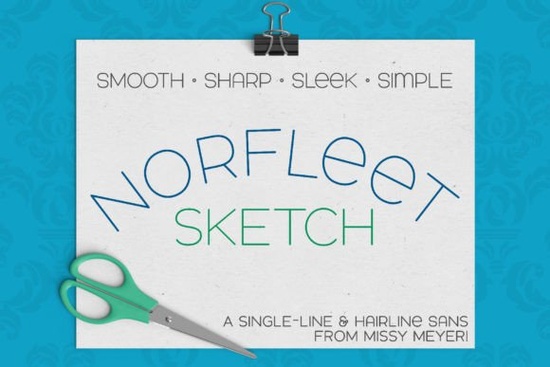
If you have ever struggled with overlapping strokes when trying to score, sketch, or engrave typography, Norfleet Sketch (single Line) Font offers a straightforward solution. Unlike standard typefaces that rely on filled outlines, this font is built entirely from single strokes. The result is a clean, elegant sans-serif design with a modern wide stance and minimal vector nodes. Whether you run a print-on-demand shop, manage a small creative business, or simply enjoy weekend crafting, this typeface removes guesswork from your machine settings and delivers predictable, smooth results.
How does a single-line font actually work in practice?
Regular fonts draw letters as solid shapes. When a cutting plotter or engraving laser reads them, it often fills the interior or traces every edge, which wastes time and creates messy double lines on scoring tools. Single-line fonts solve this by using only one continuous path. Each character maps to a single pen stroke or tool trajectory. The curves in this specific design are optimized to prevent your machine from hesitating at sharp corners, making it reliable for both slow, detailed engraving and fast scoring passes. You can visit the full product gallery to preview every available character variant before purchasing. If you want to browse more lightweight typefaces that share this clean aesthetic, several curated collections are available.
What is the difference between the One and Two versions?
The download includes two distinct files, and picking the right one depends entirely on your software workflow. Norfleet Sketch One is a true single-line font. Every letter is a single mathematical stroke. If you work in advanced vector programs or CNC routing software, this version is ideal. Most standard design applications will automatically close the gap between start and end points, but you can easily delete that connector in Illustrator, Affinity Designer, or Inkscape. If you prefer a plug-and-play approach, Norfleet Sketch Two is built as a hairline outline. The inner and outer edges sit so close together that they appear as one stroke. This version works instantly in crafting ecosystems without manual path adjustments.
Which design and crafting programs support this format?
Compatibility varies by platform. Silhouette Studio, Cricut Design Space, CorelDRAW, and Affinity Designer all handle the hairline version smoothly. If you use Brother Canvas Workspace, be aware that single-line formats frequently cause pathing errors in that environment, so testing with the included PDF guide first is highly recommended. For users who need heavier headline contrast, designers often check Bouldy. Those planning outdoor or rustic packaging designs might prefer pairing this with Adventure for a more geometric look. Because it is strictly a drawing font, do not expect normal behavior in word processors. Its purpose is guiding a tool along a precise path.
What types of projects get the best results with this typeface?
This font shines when paired with tools that draw rather than cut. It works exceptionally well with engraving lasers on wood or leather, sketch pens on cardstock, foil quills for metallic typography on gift tags, and infusible ink pens for custom tumblers. The double-uppercase layout keeps headings uniform, while subtle variations like the round-topped A and traditional lowercase e prevent a mechanical, industrial look. For softer secondary text, Bourgueil pairs nicely with wide sans-serifs in multi-layered layouts. Always remember that these files are not meant for standard printing or word processing, but rather for stylus-driven machines.
How should I prepare my files before sending them to the machine?
Proper setup prevents wasted materials and tool wear. Always convert your text to paths or outlines before importing it into your software. Check the stroke weight in your program and set it to hairline or 0.001 pt. Run a small test pass on scrap stock to verify your tool pressure matches the delicate lines. If you need a technical breakdown of how vector paths translate to machine instructions, studying how Norfleet Sketch (single Line) Font handles continuous strokes will clarify the rendering process.
What steps should I take before starting my next project?
Use this quick preparation list to streamline your workflow:
- Download the package and read the included PDF guide to match your specific software version.
- Install the correct file variant based on whether your program auto-connects path endpoints.
- Set your canvas resolution and tool speed to accommodate continuous drawing without overlapping.
- Convert all typography to outlines or curves to avoid missing font errors during export.
- Print or engrave a single-letter test on your actual project material before committing to the full design.
Keep your machine needles, pens, or laser nozzles clean before running these files to maintain crisp line definition, and always save your working vector file before final export to preserve editable paths for future adjustments.
Download Now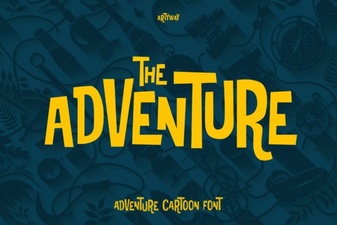 Adventure Fonts for Creative Projects & Designs
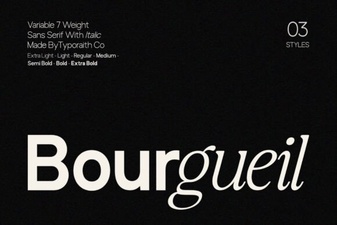 Bourgueil Font: a Distinctive Creative Design Tool
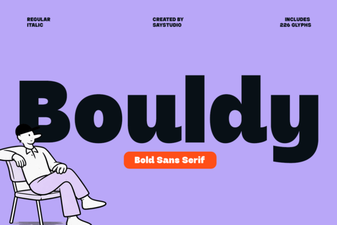 Bouldy Font: Download Free Typeface for Designers
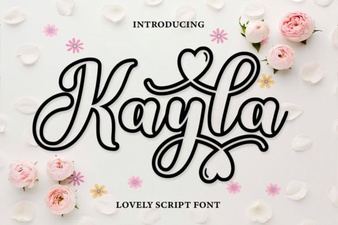 Kayla Outline: Elegant Font Designs & Project Ideas
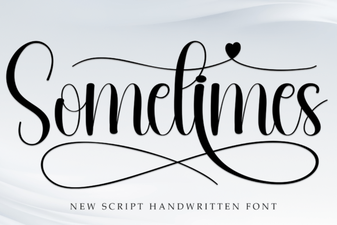 Sometimes Font: Creative Tips & Design Ideas
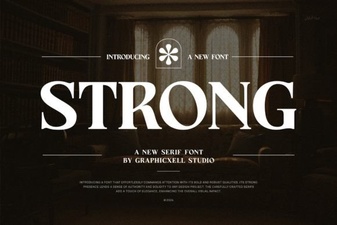 Best Uses of Strong Fonts for Design Impact